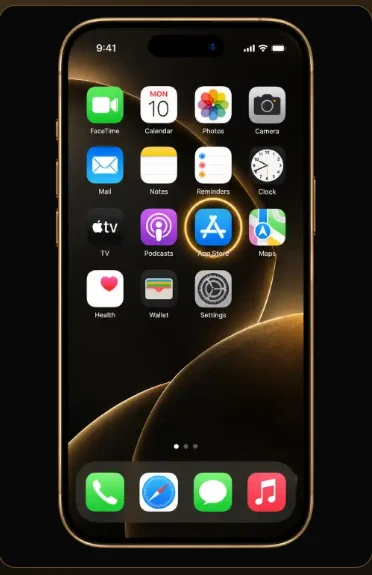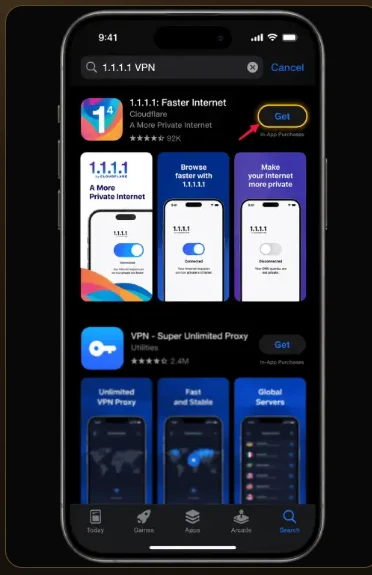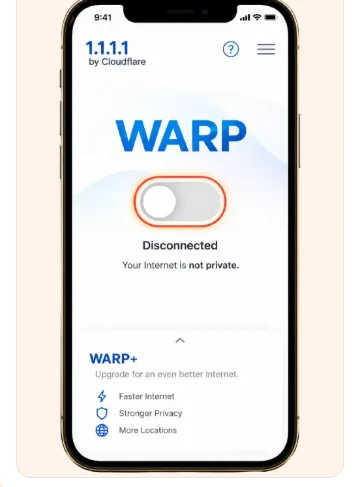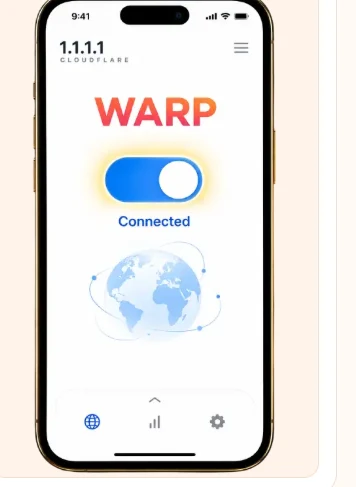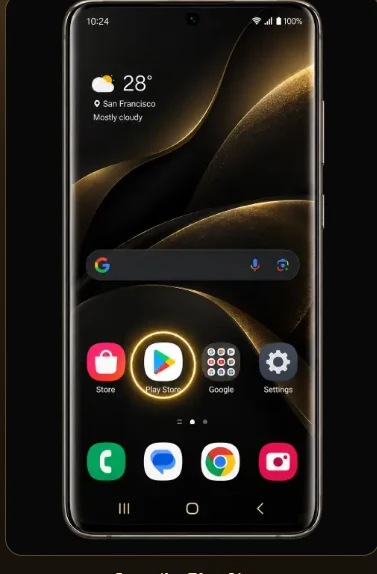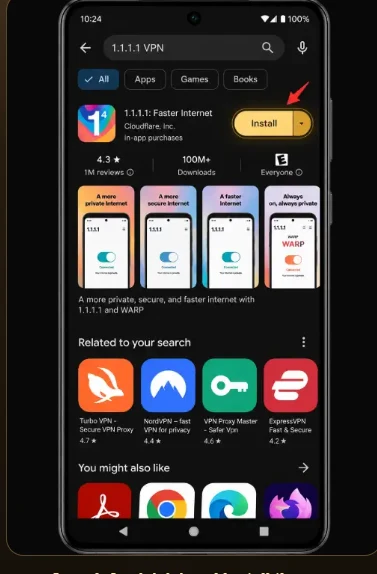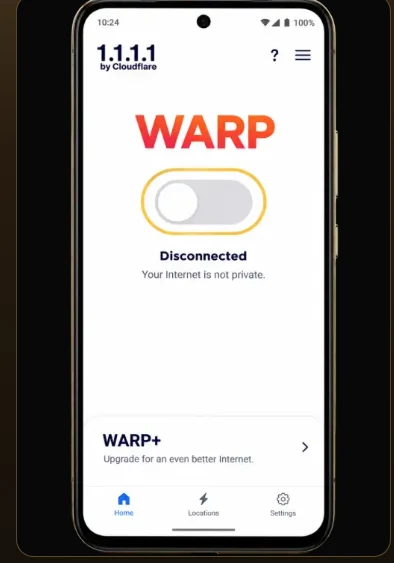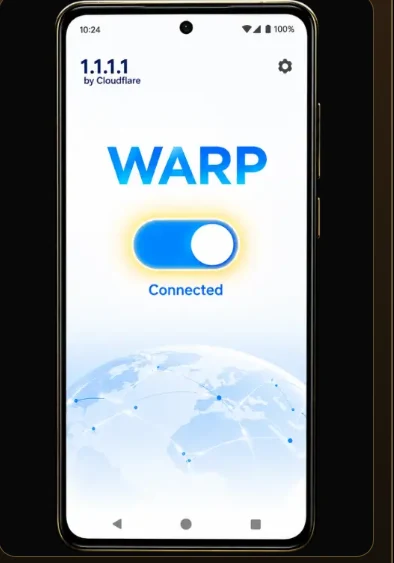

Start with the store on your device
The illustrated sequence on this page covers the optional Cloudflare 1.1.1.1 connection app. Choose iPhone if you are using the App Store and Android if you are using Google Play. Open the store on the device itself, read the app name and compare the publisher with the one you intended to find. Search results can place several similar icons together. The name below an icon and the publisher on the listing give you more information than the colour of the icon alone.
Follow the four pictures in order
First locate the store. Next identify the listing. The later pictures move inside the installed app and show the connection control and its resulting state. A button may look different if the app is already installed, or if the device is using a different system version. Read the current wording before proceeding. If the phone asks to add a network configuration, take a moment to review the request. On a managed device that decision may belong to its administrator.
Check the result in two places
Once the app reports a connection state, return to the browser tab that prompted you to investigate. Reload that one page and note what appears. The network app can report a successful connection even if a separate website still asks you to sign in. Record the two observations separately. If only one page fails, try the same site’s home page and identify whether the difference concerns loading, navigation or the account destination.
Keep the evidence simple
For a question about these instructions, name the device, the step number and the label you actually saw. A message such as “Android, step three, the switch opens a system prompt” gives a reader a clear starting point. For a saved file that will not open, use the Download page and check the transfer in the browser first. That task calls for a filename and a completion state, rather than a screenshot of network settings or details of an account.